


Open Outlook
Start Microsoft Outlook on your computer.
Go to Account Settings
-
Click on the File tab (top left).
-
Select Account Settings → Account Settings again from the dropdown.
Add a New Account
-
Under the Email tab, click New.
-
Choose E-mail Account and click Next.
Choose Manual Setup
-
Select Manual setup or additional server types.
-
Click Next.
Select Service
-
Choose POP or IMAP and click Next.
Enter Your Account Information
Fill in the details provided by your email host:
-
Your Name: The name you want people to see.
-
Email Address: Your full email address.
-
Account Type: Select IMAP or POP3 (recommended).
-
Incoming mail server: e.g.
mail.yourdomain.co.za -
Outgoing mail server (SMTP): e.g.
mail.yourdomain.co.za -
Username: Your full email address.
-
Password: Your email password supplied by us.
More Settings
-
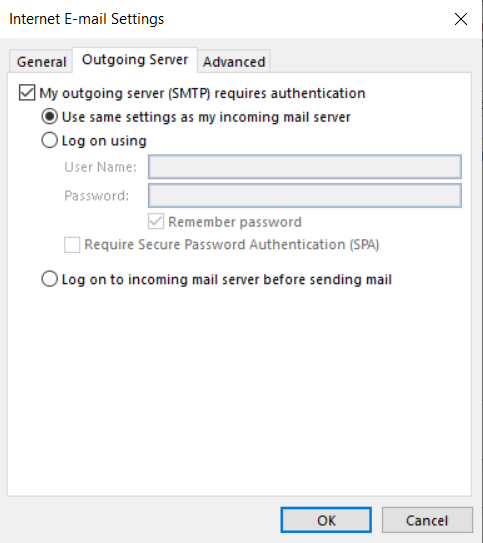
Click More Settings → Outgoing Server tab.
-
Tick My outgoing server (SMTP) requires authentication.
-
Select Use same settings as my incoming mail server.
Advanced Settings
-
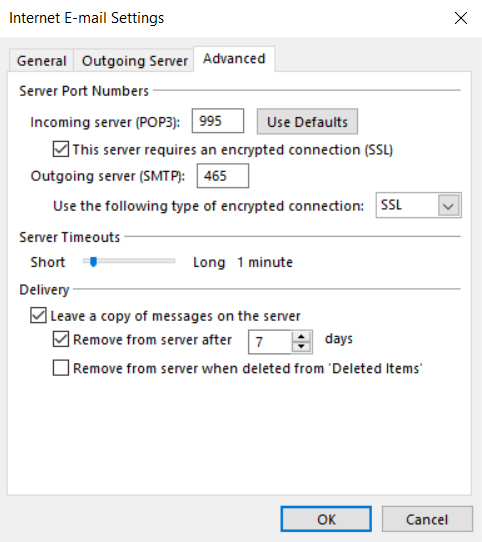
Go to the Advanced tab.
-
Settings:
-
Incoming: 995 (SSL) POP3 (Imap 993)
-
Outgoing: 465 (SSL)
-
-
Click OK.
Test Settings
-
Back on the main window, click Test Account Settings.
-
Outlook will check the connection. If all is correct, you’ll see a success message.
Finish Setup
-
Click Next, then Finish.
-
Your email is now set up and ready to use in Outlook.
