Variable products allow a single product to have multiple options — for example, a T-shirt available in different sizes and colours. You can have more than one attribute per product (e.g., Size and Colour).
There are two main methods to set up variable products:
Method 1: Using Global Product Attributes
Best if you want to reuse the same options across multiple products.
-
Go to Products > Attributes in your dashboard.
-
Add a new attribute (e.g., Size) and click Add Attribute.
-
Click Configure Terms under that attribute and add the options (e.g., Small, Medium, Large).
-
Repeat for any other attributes you need (e.g., Colour: Red, Blue, Green).
Apply to your product:
-
Edit or add a product.
-
In Product Data, select Variable Product.
-
Go to the Attributes tab:
-
Select your global attributes (e.g., Size, Colour).
-
Tick Used for Variations.
-
Untick Display on Product Page.
-
Save Attributes.
-
-
Go to the Variations tab:
-
Click Add Variation.
-
Select the specific variation (e.g., Small / Red).
-
Set the price for each variation.
-
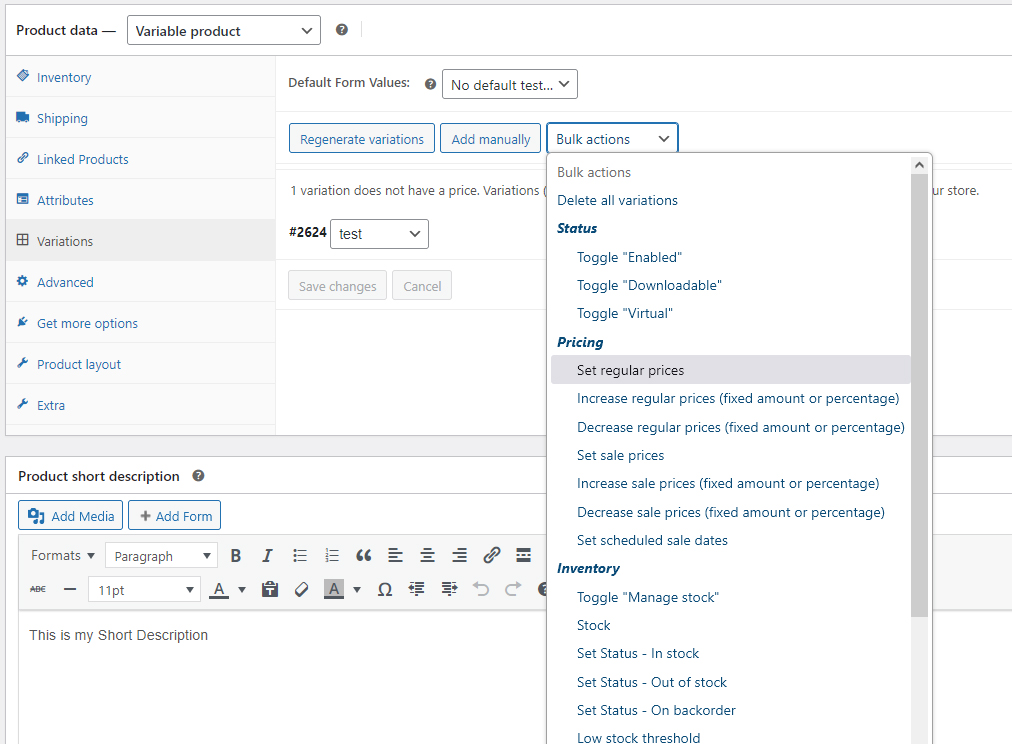
If all variations have the same price, you can use Bulk Actions > Set Regular Price to save time.
-
-
Save or update the product.
Method 2: Using Custom Attributes with the | Symbol
Best if the options are only for one product and won’t be reused elsewhere.
-
Edit or add a product.
-
In Product Data, select Variable Product.
-
In the Attributes tab:
-
Select Custom Product Attribute and click Add.
-
Name your attribute (e.g., Size).
-
Enter options separated by a pipe symbol (
|).-
Example: Small | Medium | Large
-
Tip: On most keyboards, the pipe symbol | is located above the Enter key.
-
If it doesn’t type directly, hold Alt and type 124 on the numeric keypad (Alt+124).
-
-
You can add another custom attribute (e.g., Colour) the same way.
-
Tick Used for Variations.
-
Untick Display on Product Page.
-
Save Attributes.
-
-
Go to the Variations tab:
-
Click Add Variation.
-
Select each combination (e.g., Small / Red).
-
Set the price for each variation individually, or use Bulk Actions > Set Regular Price if all are the same.
-
-
Save or update the product.
Summary / Tips:
-
Variable products can use more than one attribute (e.g., Size and Colour).
-
Always tick Used for Variations and untick Display on Product Page to prevent duplicate display.
- Use Global Attributes for reusable options and Custom Attributes for product-specific options.
-
To type multiple options in a custom attribute, separate them with the pipe symbol (
|). - Prices are set in the Variations tab — either individually or using bulk actions.