Step 1: Log in to Webmail
-
Open your internet browser (for example Chrome, Edge, or Firefox).
-
In the address bar, type: www.yourdomain.co.za/webmail
-
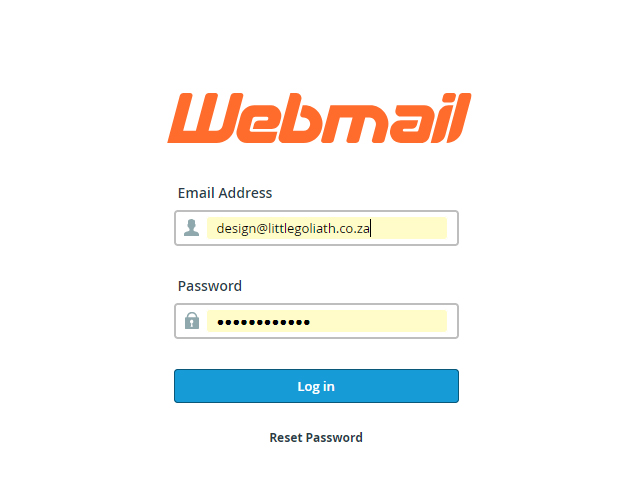
On the login screen, enter your full email address as the username.
-
Enter your current email password.
Note: You must already have a valid password in order to log in. You cannot change your password if you cannot access your account.
Step 2: Open the Webmail Dashboard
-
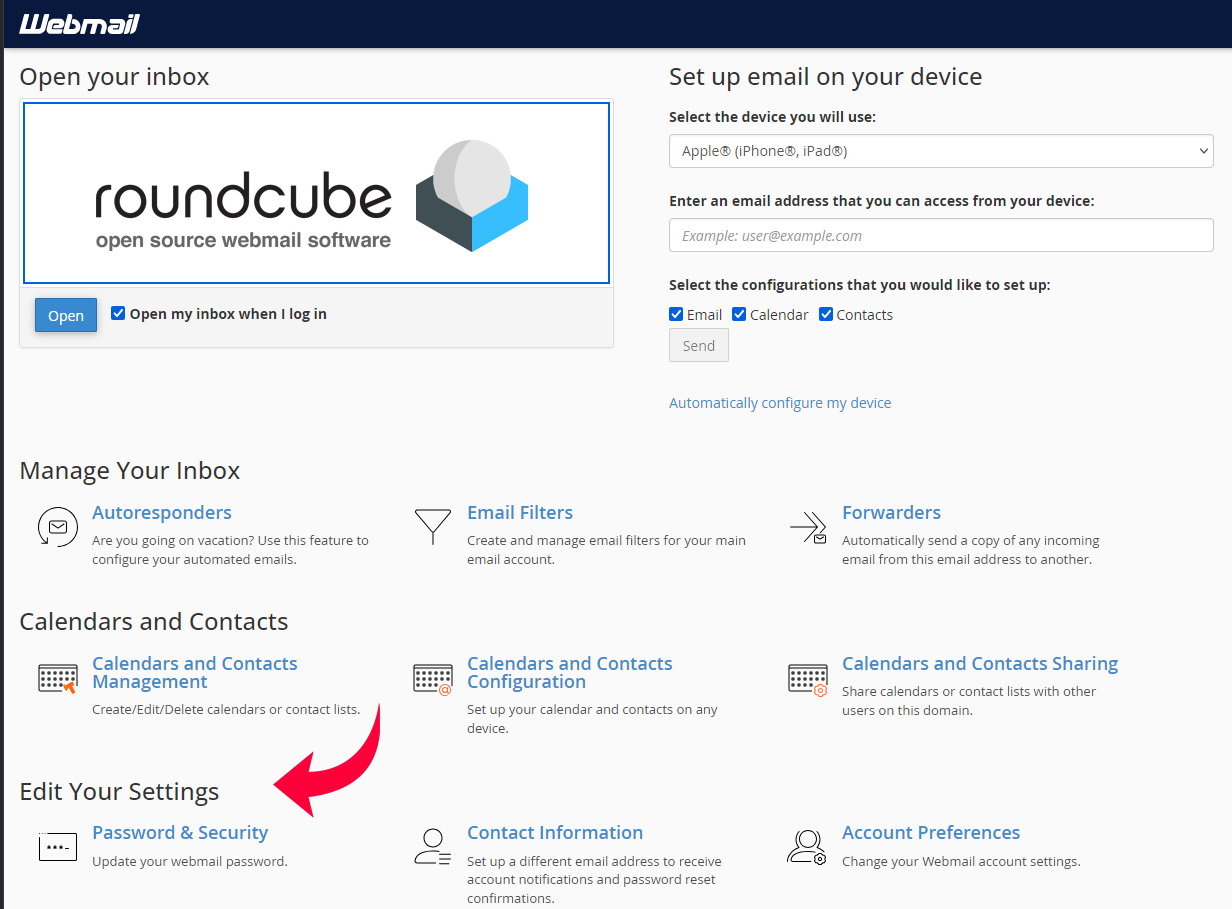
After logging in, you will see the Webmail dashboard.
-
You can choose to use Roundcube to check your emails.
Step 3: Change Your Password
-
On the Webmail dashboard, look for the section or link that says Password & Security.
-
Click on Password & Security.
- Enter your new password twice (make sure it’s strong and easy for you to remember).
-
Click Save or Update Password.
Step 4: Update Your Devices
-
Once the password is changed, you must also update it on all devices where your email is set up (Outlook, phone mail app, etc.).
-
If you do not update the password, your emails will stop syncing on those devices.