



Step 1: Duplicate a Page
-
In your WordPress dashboard, go to Pages > All Pages.
-
Find the page you want to copy that is similar to what you want to add, eg the About Us page, or Gallery page.
-
Hover over the page name and click Duplicate (or Copy to a new draft, depending on your setup).
-
A new page will appear in your list, usually named something like “Copy of [Original Page Name]”.
-
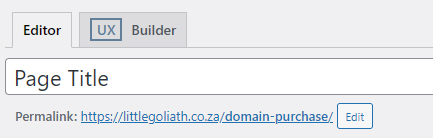
Click Edit on the new page.
- Update the Page Title and Permalink (URL) to match the new page purpose.
-
Click Publish when ready.
- Edit the page content in UX Builder that will open up a WYSIWYG interface, there you can change images, and text without affecting the original page.
Step 2: Add the New Page to the Menu
-
In your dashboard, go to Appearance > Menus.
-
Select the menu you want to edit (usually Main Menu).
-
On the left, under Pages, find your new page.
-
Tick the checkbox next to the page and click Add to Menu.
-
Drag the page to the desired position in the menu order.
-
Click Save Menu.
Tips:
-
Duplicating a page is useful when a client wants a new page with the same layout or structure as an existing one.
-
Always update the page title and permalink to avoid confusion.
